Activation & Licenses
Learn how to activate SRExpert and manage your license.
Registration
Create Account
- Access your SRExpert installation
- Click Register on the login page
- Fill in your details:
- Name
- Company
- Password
- Log in to your account
Account Types
| Type | Description |
|---|---|
| Admin | Full access to all features |
| User | Access based on permissions |
| Viewer | Read-only access |
License Plans
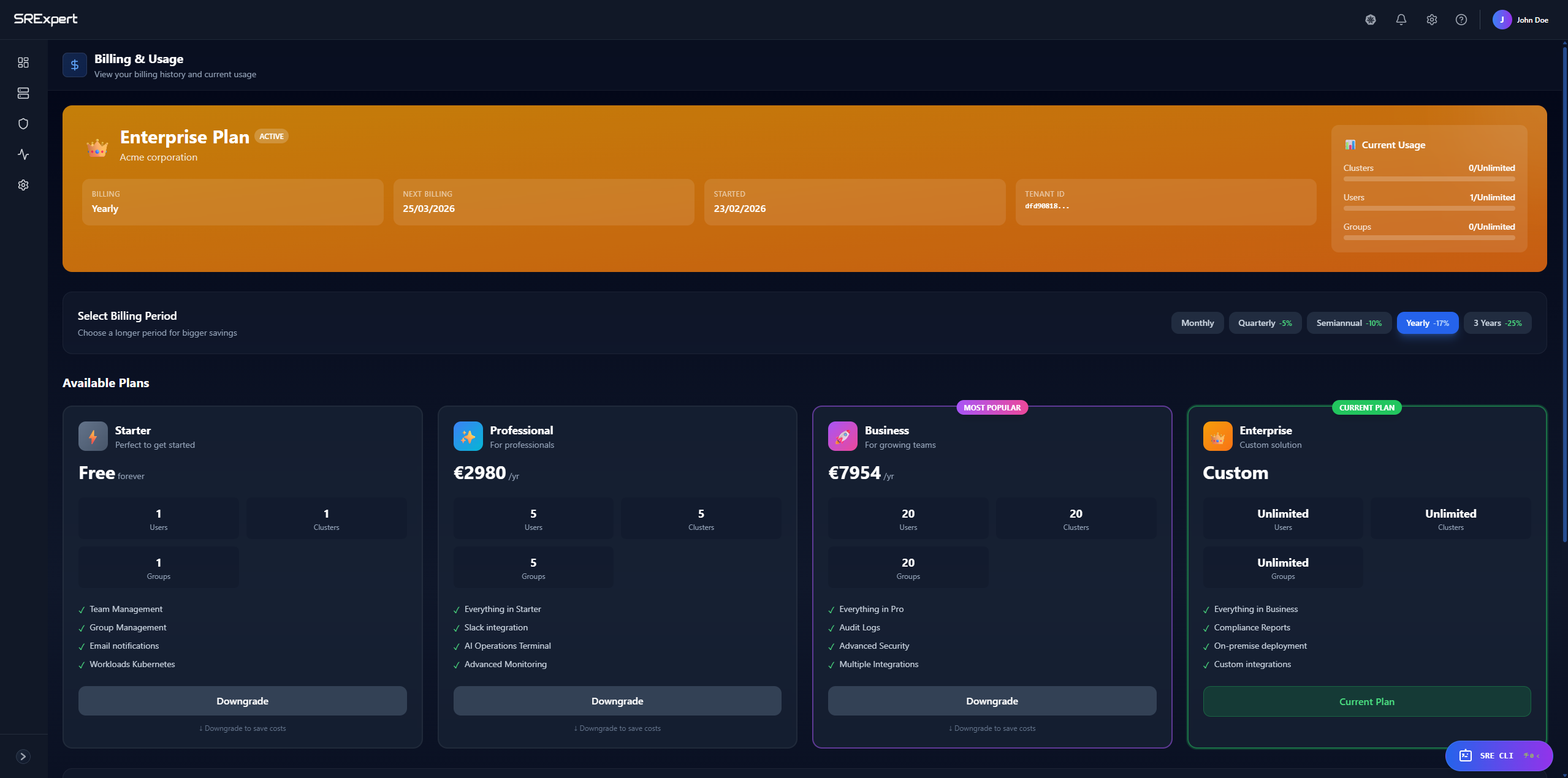
Choose the plan that fits your needs. Upgrade or downgrade anytime.
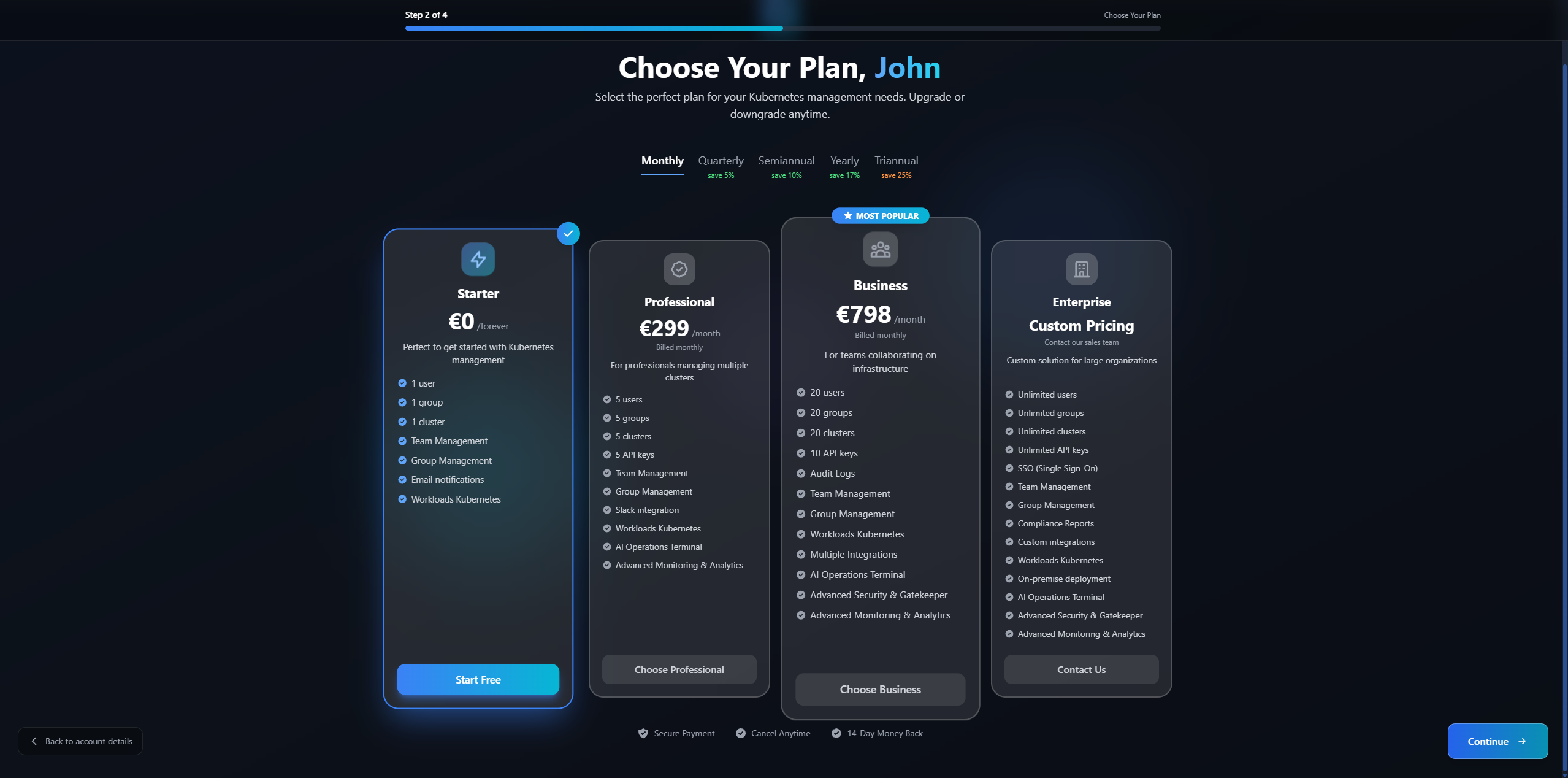
The images shown are for illustrative purposes only. Prices and features may vary. For current pricing, please check the platform directly.
Plan Comparison
| Feature | Starter | Professional | Business | Enterprise |
|---|---|---|---|---|
| Users | 1 | 5 | 20 | Unlimited |
| Groups | 1 | 5 | 20 | Unlimited |
| Clusters | 1 | 5 | 20 | Unlimited |
| API Keys | - | 5 | 10 | Unlimited |
| Team Management | ✓ | ✓ | ✓ | ✓ |
| Group Management | ✓ | ✓ | ✓ | ✓ |
| Workloads Kubernetes | ✓ | ✓ | ✓ | ✓ |
| Email Notifications | ✓ | ✓ | ✓ | ✓ |
| Slack Integration | - | ✓ | ✓ | ✓ |
| AI Operations Terminal | - | ✓ | ✓ | ✓ |
| Advanced Monitoring | - | ✓ | ✓ | ✓ |
| Multiple Integrations | - | - | ✓ | ✓ |
| Audit Logs | - | - | ✓ | ✓ |
| Advanced Security & Gatekeeper | - | - | ✓ | ✓ |
| SSO (Single Sign-On) | - | - | - | ✓ |
| Compliance Reports | - | - | - | ✓ |
| Custom Integrations | - | - | - | ✓ |
| On-premise Deployment | - | - | - | ✓ |
For pricing information, visit the billing section in your SRExpert dashboard or contact our sales team.
Activation
Online Activation
- Log in to SRExpert
- Go to Settings > License
- Click Activate License
- Enter your license key
- Click Activate
Offline Activation
For air-gapped environments:
- Go to Settings > License
- Click Offline Activation
- Copy the machine ID
- Contact support with your machine ID
- Enter the activation code provided
License Management
View License Status
Go to Settings > License to see:
- License type
- Expiration date
- Features included
- Cluster limit
Renew License
- Contact sales or visit the portal
- Complete the renewal process
- Enter the new license key in SRExpert
Transfer License
To transfer your license to a new installation:
- Deactivate on the old installation
- Activate on the new installation
Troubleshooting
License Not Activating
- Check internet connectivity
- Verify the license key is correct
- Ensure the license hasn’t expired
Feature Not Available
- Verify your license plan includes the feature
- Check if the license has expired
- Contact support for assistance
Contact Sales
For license inquiries:
- Email: [email protected]
Next Steps
- Getting Started - Installation guide
- Cluster Manager - Add your first cluster