Cluster Manager
The Cluster Manager allows you to add, configure, and manage multiple Kubernetes clusters.
Overview
SRExpert supports managing multiple clusters from a single interface. You can:
- Add clusters using kubeconfig
- Monitor cluster health
- Switch between clusters
- Configure cluster-specific settings
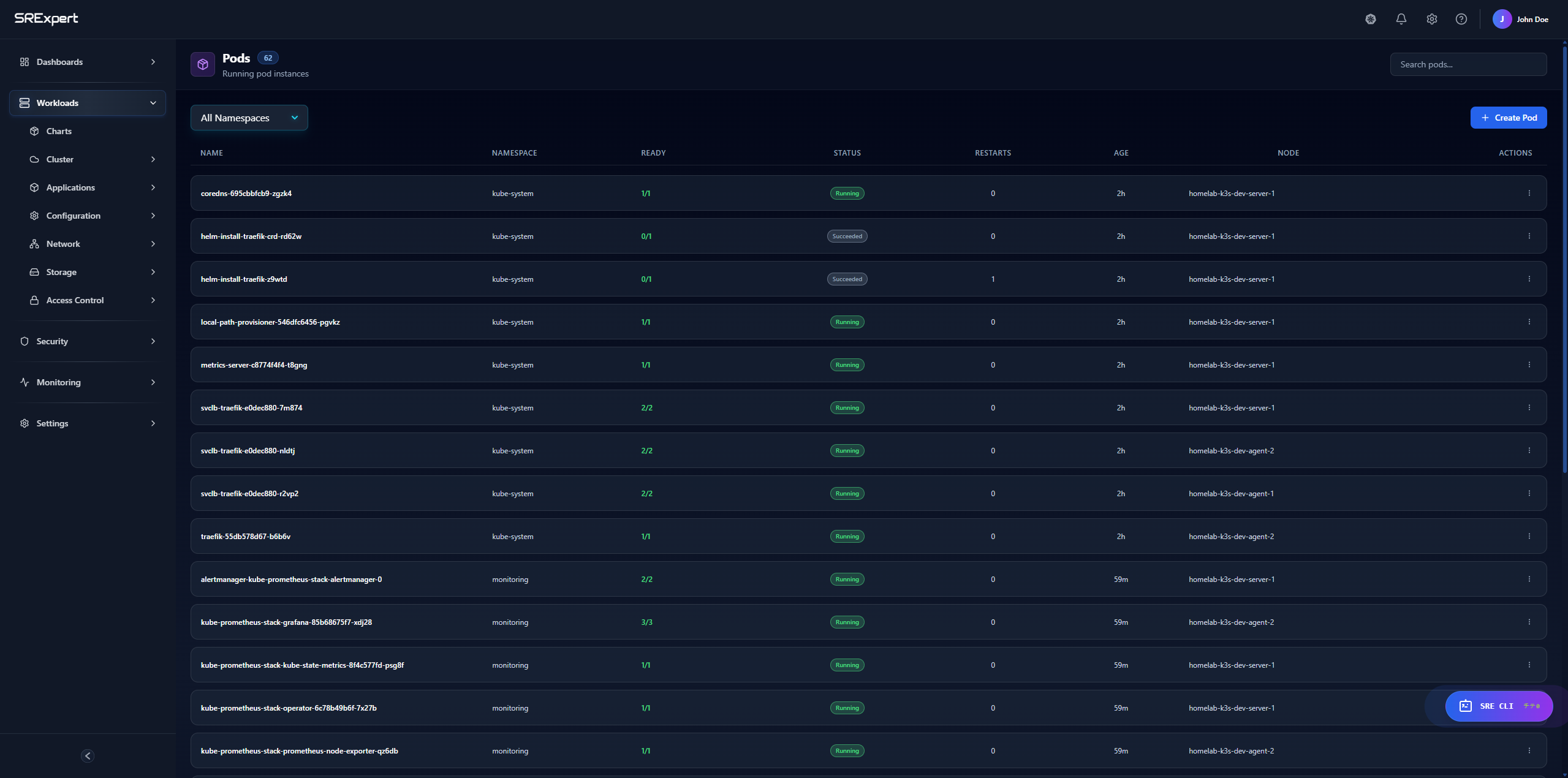
Adding a Cluster
Prerequisites
- A running Kubernetes cluster
- A valid kubeconfig file
- Network access from SRExpert to the cluster API
Step by Step
- Go to Settings > Clusters
- Click Add Cluster
- Fill in the cluster details:
| Field | Description |
|---|---|
| Name | A friendly name for the cluster |
| Description | Optional description |
| Environment | Production, Staging, or Development |
| Provider | AWS, Azure, GCP, On-Premise, etc. |
- Upload or paste your kubeconfig
- Click Test Connection
- If successful, click Save
Kubeconfig Format
apiVersion: v1
kind: Config
clusters:
- cluster:
    certificate-authority-data: <base64-encoded-ca>
    server: https://your-cluster-api:6443
  name: my-cluster
contexts:
- context:
    cluster: my-cluster
    user: my-user
  name: my-context
current-context: my-context
users:
- name: my-user
  user:
    client-certificate-data: <base64-encoded-cert>
    client-key-data: <base64-encoded-key>
Cluster Status
After adding a cluster, you’ll see its status:
| Status | Description |
|---|---|
| Connected | Cluster is accessible |
| Disconnected | Cannot reach cluster API |
| Error | Authentication or other error |
| Syncing | Initial data sync in progress |
Managing Clusters
Edit Cluster
- Go to Settings > Clusters
- Click on the cluster
- Modify settings
- Click Save
Remove Cluster
- Go to Settings > Clusters
- Click on the cluster
- Click Delete
- Confirm deletion
Warning: Removing a cluster doesn’t affect the actual cluster, only SRExpert’s connection to it.
Switch Clusters
Use the cluster selector in the top navigation bar to switch between clusters.
Cluster Permissions
Minimum Required Permissions
For read-only access:
apiVersion: rbac.authorization.k8s.io/v1
kind: ClusterRole
metadata:
  name: srexpert-readonly
rules:
- apiGroups: ["*"]
  resources: ["*"]
  verbs: ["get", "list", "watch"]
Full Access
For full functionality (including SRE CLI):
apiVersion: rbac.authorization.k8s.io/v1
kind: ClusterRole
metadata:
  name: srexpert-admin
rules:
- apiGroups: ["*"]
  resources: ["*"]
  verbs: ["*"]
Creating a ServiceAccount
# Create namespace
kubectl create namespace srexpert-system

# Create ServiceAccount
kubectl create serviceaccount srexpert -n srexpert-system

# Create ClusterRoleBinding
kubectl create clusterrolebinding srexpert-admin \
  --clusterrole=cluster-admin \
  --serviceaccount=srexpert-system:srexpert

# Get the token (Kubernetes 1.24+)
kubectl create token srexpert -n srexpert-system --duration=8760h
Cluster Settings
Each cluster can have specific settings:
- Sync Interval - How often to refresh data
- Timeout - API request timeout
- Labels - Custom labels for organization
- Notifications - Cluster-specific alerts
Multi-Cluster Operations
Compare Clusters
View resources across multiple clusters side by side.
Bulk Actions
Apply configurations to multiple clusters at once.
Troubleshooting
Cannot Connect
- Verify the cluster API is accessible
- Check firewall rules
- Validate the kubeconfig credentials
Authentication Failed
- Ensure certificates haven’t expired
- Verify the user/ServiceAccount has permissions
- Check if the token is still valid
Slow Performance
- Check network latency to the cluster
- Consider increasing timeout settings
- Verify cluster resources aren’t exhausted
Next Steps
- Dashboard View - Explore your cluster
- Workloads View - Manage workloads
- Security View - Scan for vulnerabilities