Group Management
Groups define what permissions users have within SRExpert. Assign users to groups to control their access level across the platform.
Accessing Group Management
- Click Settings in the sidebar
- Expand Users section
- Select Group Management
Groups Overview
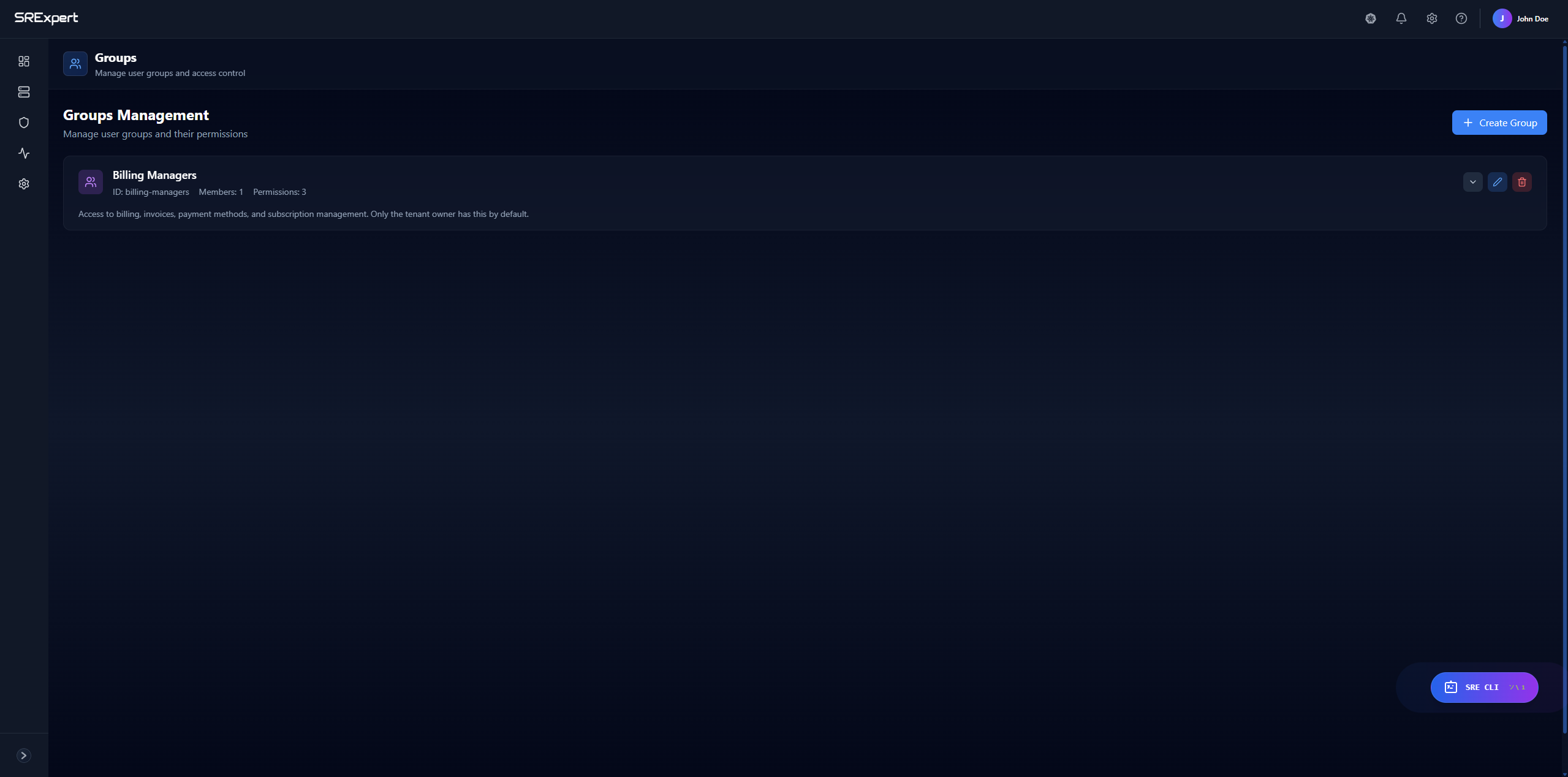
The Groups Management page displays all permission groups:
| Column | Description |
|---|---|
| Name | Group display name |
| ID | System identifier for the group |
| Members | Number of users in the group |
| Permissions | Number of permissions assigned |
| Description | Brief description of the group’s purpose |
Default Groups
SRExpert comes with a default group:
- Billing Managers: Access to billing, invoices, payment methods, and subscription management. Only the tenant owner has this by default.
Creating a New Group
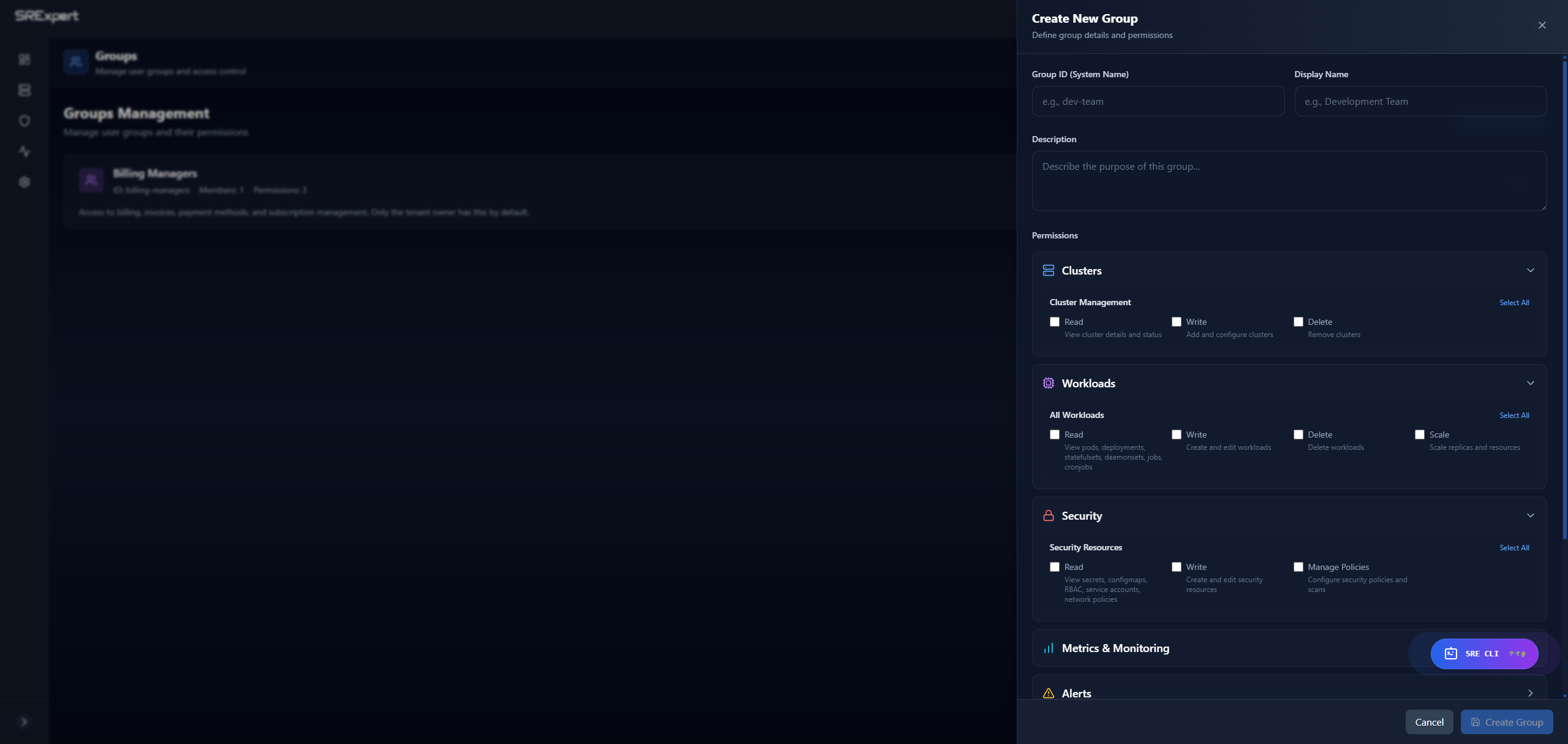
- Click the Create Group button
- Fill in the group details:
- Group ID: System name (lowercase, no spaces, used internally)
- Display Name: Human-readable name shown in the UI
- Description: Brief description of the group’s purpose
- Configure permissions for each category
- Click Create Group
Permission Categories
Permissions are organized into the following categories:
Clusters
Control access to cluster management features:
- Read: View cluster information, namespaces, and nodes
- Write: Create and modify cluster configurations
- Delete: Remove clusters and related resources
Workloads
Control access to workload resources:
- Read: View pods, deployments, services, and other workloads
- Write: Create and modify workloads
- Delete: Remove workload resources
Security
Control access to security features:
- Read: View security policies and compliance reports
- Write: Create and modify security policies
- Delete: Remove security configurations
Metrics & Monitoring
Control access to monitoring features:
- Read: View metrics, dashboards, and monitoring data
- Write: Configure monitoring settings
- Delete: Remove monitoring configurations
Alerts
Control access to alerting system:
- Read: View alerts and notifications
- Write: Create and modify alert rules
- Delete: Remove alert configurations
Users & Groups
Control access to user management:
- Read: View team members and groups
- Write: Add and modify users and groups
- Delete: Remove users and groups
Billing & Subscriptions
Control access to billing features. Granted by the default Billing Managers group:
- Read: View invoices and subscription details
- Write: Modify payment methods and subscription
- Manage: Full control over billing, including managing the subscription
System Administration
Control access to system settings:
- Read: View system configurations
- Write: Modify system settings
- Delete: Reset system configurations
AI & Chat
Control access to AI assistant features:
- Read: Use AI chat and view suggestions
- Write: Configure AI settings
- Delete: Clear AI conversation history
Permission Levels
Each category supports three permission levels:
| Level | Description |
|---|---|
| Read | View-only access to the feature |
| Write | Create and modify resources |
| Delete | Remove resources permanently |
Use Select All to quickly grant all permissions in a category.
Editing a Group
- Find the group in the Groups list
- Click the Edit button
- Modify group details or permissions
- Click Save Changes
Deleting a Group
- Find the group in the Groups list
- Click the Delete button
- Confirm the deletion
Warning: Before deleting a group, reassign its members to another group to maintain their access.
Best Practices
- Principle of Least Privilege: Grant only the permissions users need to perform their tasks
- Use Descriptive Names: Make group names clear (e.g., “DevOps Team”, “Billing Admins”)
- Regular Audits: Periodically review group memberships and permissions
- Separate Concerns: Create distinct groups for different roles (developers, operators, billing)
Group Limits by Plan
| Plan | Groups Included |
|---|---|
| Starter (Free) | 1 group |
| Professional | 5 groups |
| Business | 20 groups |
| Enterprise | Unlimited |