Team Management
Manage team members and control their access to your SRExpert organization.
Accessing Team Management
- Click Settings in the sidebar
- Expand Users section
- Select Team Management
Team Members Overview
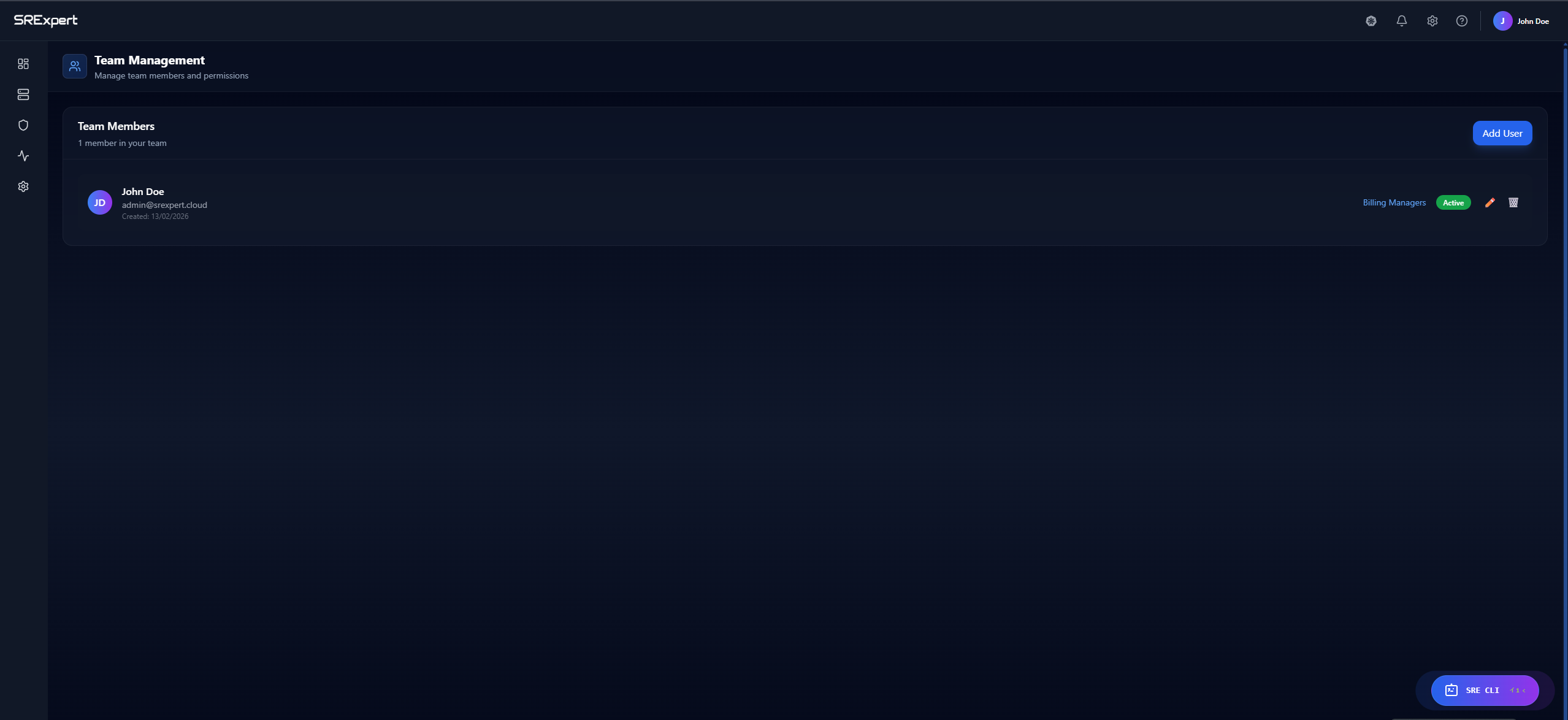
The Team Members page displays all users in your organization:
| Column | Description |
|---|---|
| Name | User’s full name and avatar |
| User’s email address | |
| Created | Date when the user was added |
| Group | Permission group assigned to the user |
| Status | Active or Inactive |
| Actions | Edit or delete user |
Adding a New User
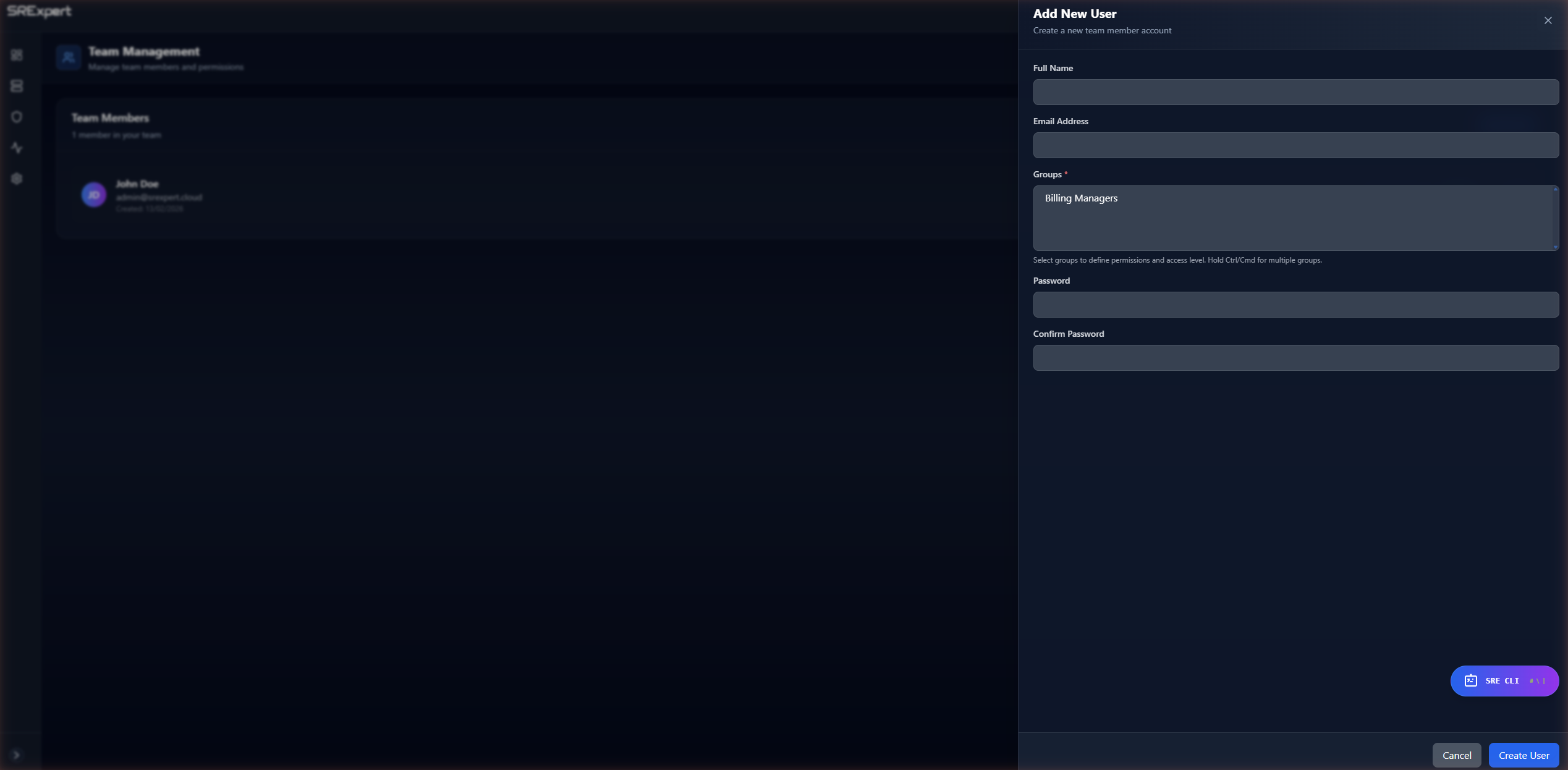
- Click the Add User button
- Fill in the user details:
- Full Name: User’s display name
- Email Address: User’s email for login
- Groups: Tick one or more permission groups from the checkbox list. At least one group is required — a user’s access is determined entirely by the groups they belong to (for example, Billing Managers or any custom group you create).
- Choose how the user gets their password:
- Invite by email (default): Leave “Password is set by the new user” checked. After you save, an invite email is sent to the address above containing a one-time link (valid for 24 hours) where the user chooses their own password.
- Set a password directly: Uncheck “Password is set by the new user” to reveal password fields and set the initial password yourself.
- Click Create User
Editing a User
- Find the user in the Team Members list
- Click the Edit button (pencil icon) in the Actions column
- Modify the user details as needed
- Click Save Changes
Removing a User
- Find the user in the Team Members list
- Click the Delete button (trash icon) in the Actions column
- Confirm the deletion
Warning: Removing a user is permanent and cannot be undone. The user will immediately lose access to the platform.
User Limits by Plan
The number of users you can add depends on your subscription plan:
| Plan | Users Included |
|---|---|
| Starter (Free) | 1 user |
| Professional | 5 users |
| Business | 20 users |
| Enterprise | Unlimited |
To add more users, consider upgrading your plan.