SSO Integration
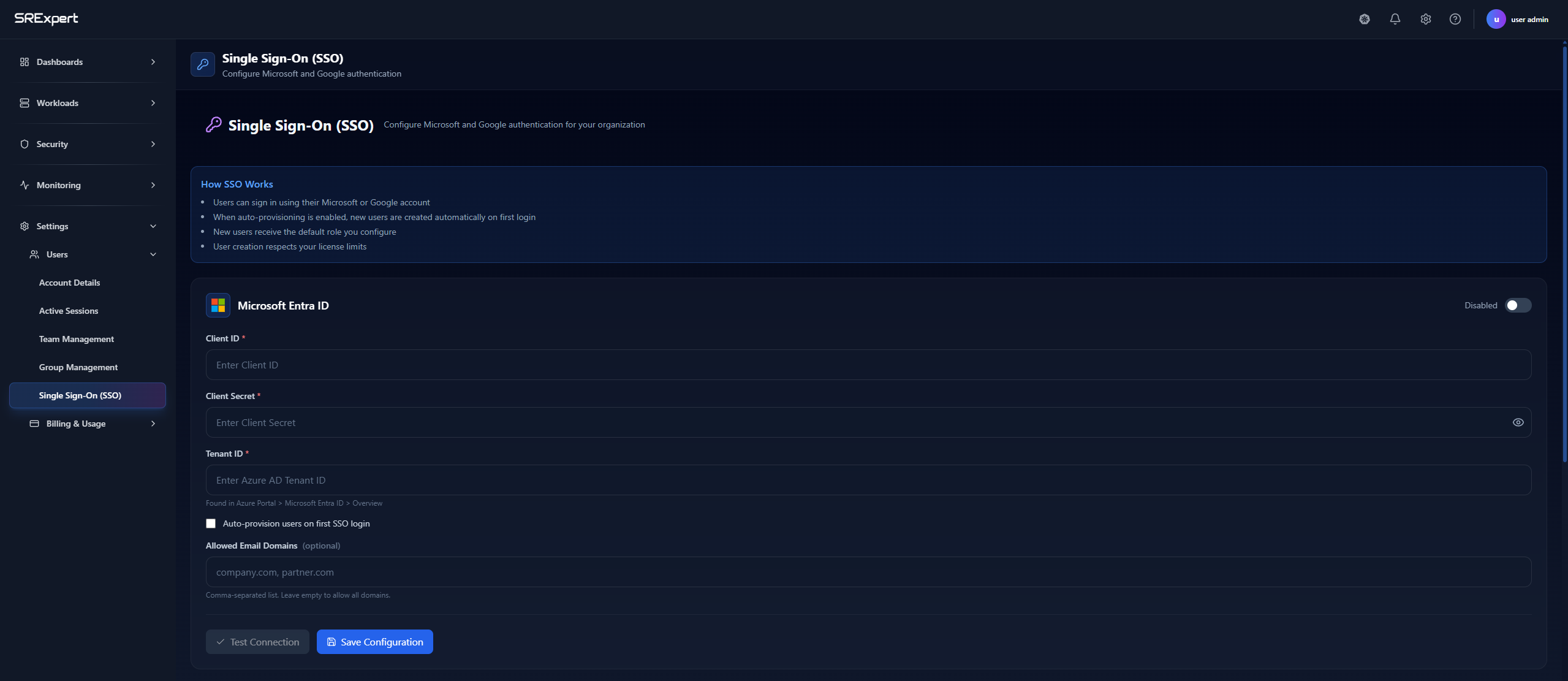
Configure Single Sign-On (SSO) to allow your team members to authenticate using your organization’s identity provider.
How SSO Works
- Users can sign in using their Microsoft or Google account
- When auto-provisioning is enabled, new users are created automatically on first login
- New users receive the default role you configure
- User creation respects your license limits
Supported Providers
Microsoft Entra ID
Connect SRExpert to Microsoft Entra ID (formerly Azure AD).
Prerequisites:
- Azure Portal admin access
- SRExpert Admin role
Setup in Azure Portal:
- Go to Azure Portal > Microsoft Entra ID > App registrations
- Click New registration and create an app named
SRExpert SSO - Set Redirect URI to:
https://your-domain.com/auth/callback/microsoft - Go to Certificates & secrets and create a new client secret
- Copy the Application (client) ID, Directory (tenant) ID, and Client secret
- Under API permissions, add:
openid,profile,email,User.Read
Configuration in SRExpert:
| Field | Description |
|---|---|
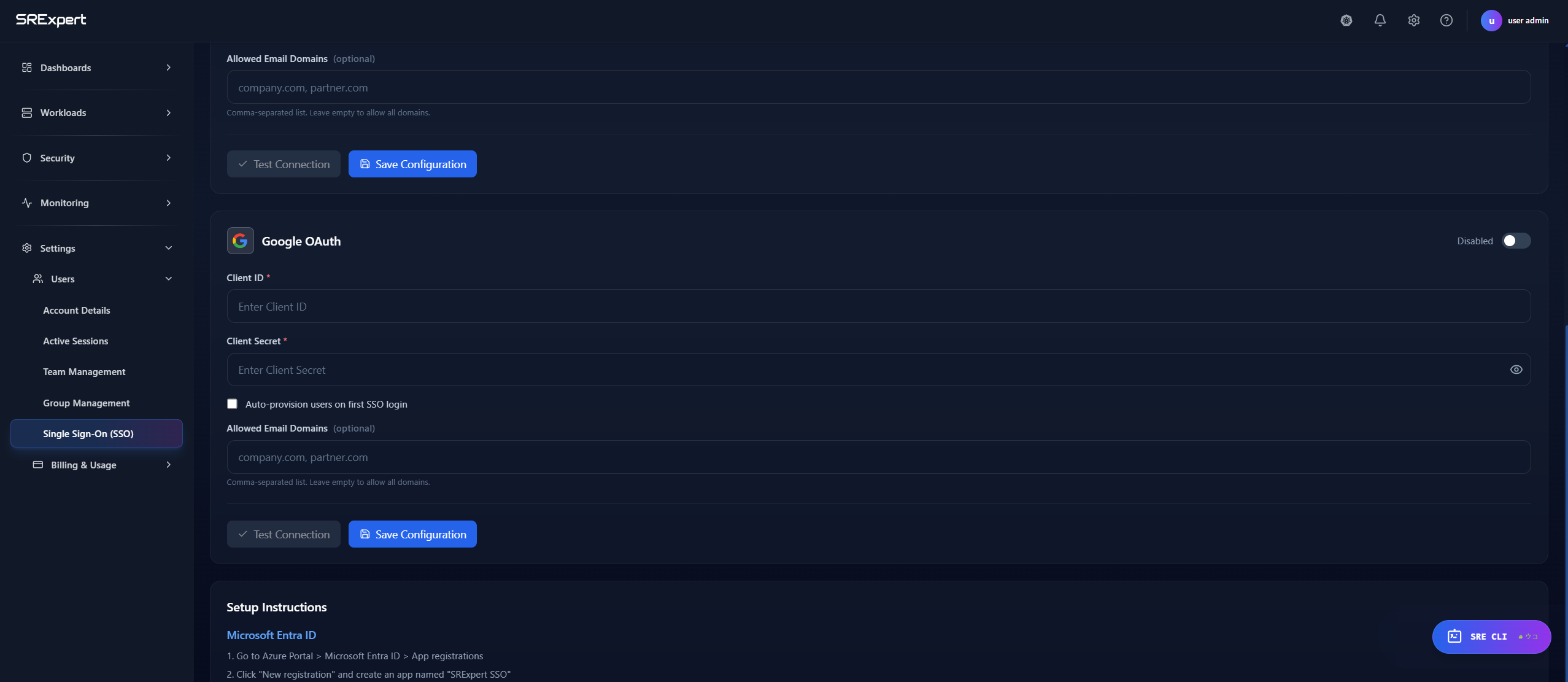
| Client ID | Application (client) ID from Azure |
| Client Secret | Secret key created in Azure |
| Tenant ID | Directory (tenant) ID from Azure |
| Auto-provision users | Automatically create users on first SSO login |
| Allowed Email Domains | Restrict SSO to specific domains (optional) |
Click Test Connection to verify, then Save Configuration.