Getting Started
Learn how to access and use the SRE CLI with AI assistance.
Opening the SRE CLI
- Look for the SRE CLI orb in the bottom-right corner of any page (“Need an SRE on it? Ask the agent”).
- Click it to open the chat panel.
Selecting a Cluster
At the top of the panel, use the cluster selector to choose which cluster to work on. The panel shows a “scoped to <cluster>” badge — the assistant only sees that cluster, and a conversation stays tied to it.
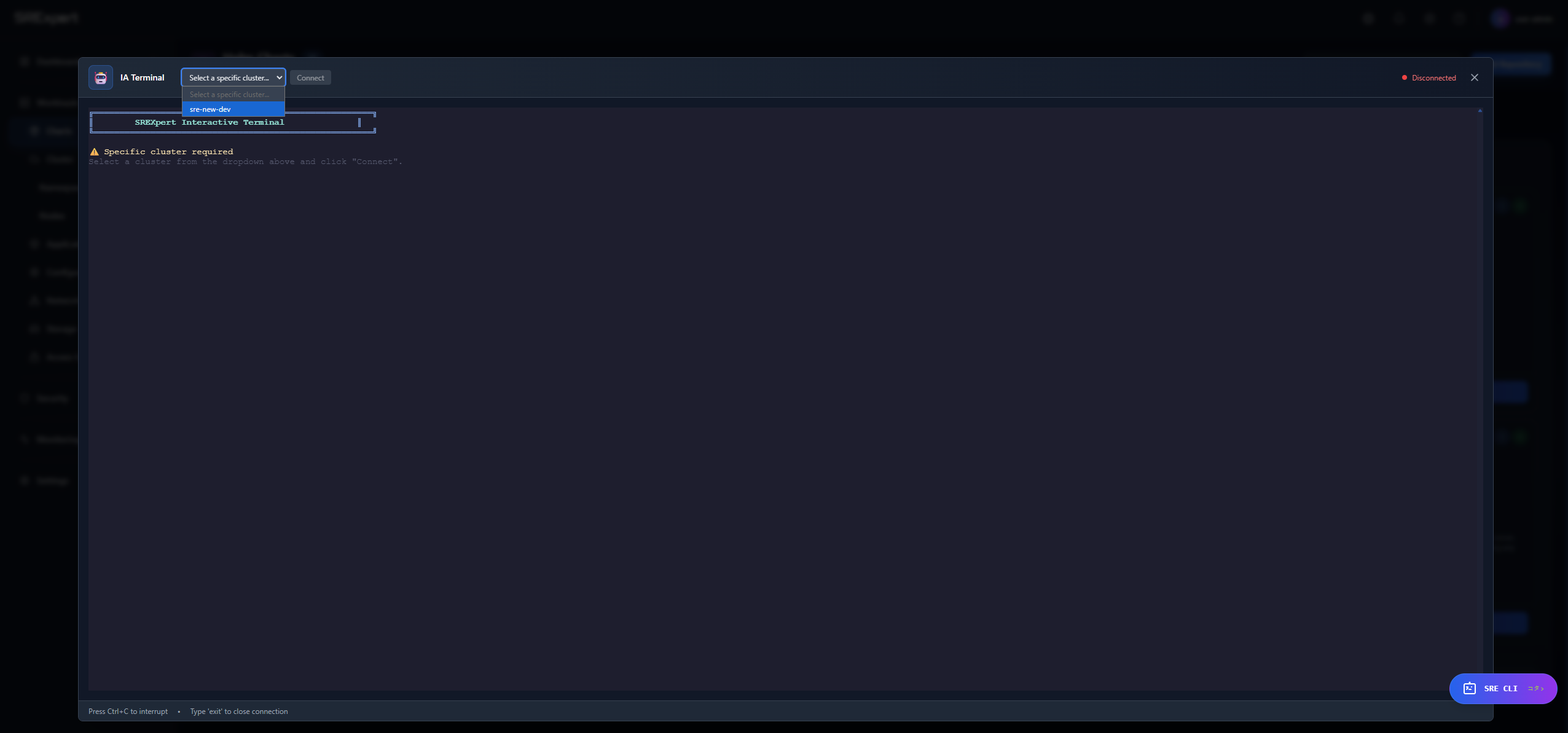
If you haven’t added a cluster yet, go to Add Cluster first.
Choosing an AI Provider
Use the provider dropdown (top-right of the panel) to pick the model that answers your questions.
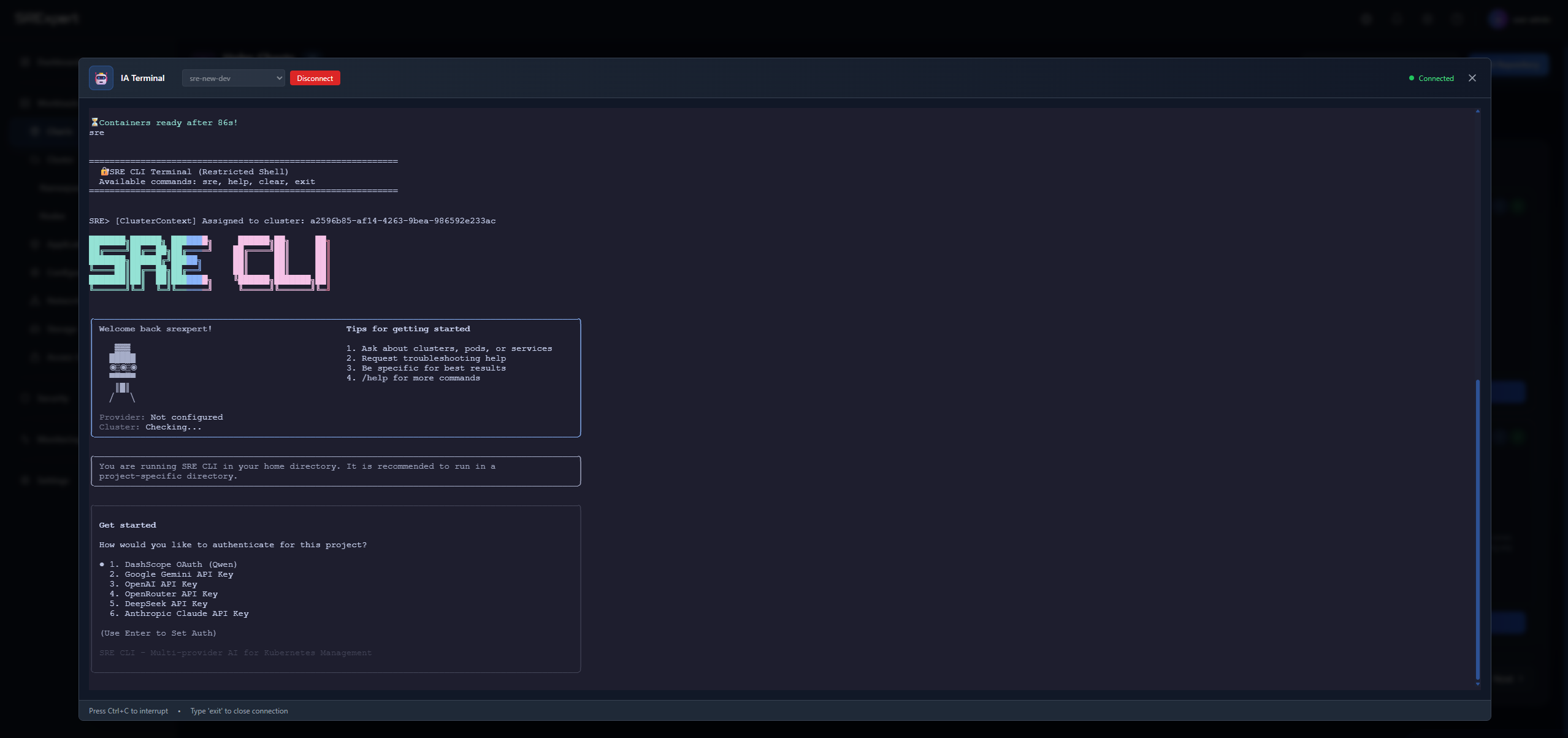
Available AI providers:
| Provider | Description |
|---|---|
| Anthropic Claude | Claude AI |
| OpenAI | GPT models |
| OpenRouter | Access to many models through a single provider |
| Google Gemini | Google’s Gemini AI |
The provider and its API key are configured in your settings (or by your administrator), and the key never leaves the server. If no provider is configured, the assistant will let you know so you (or an admin) can set one up.
Your First Query
Once a cluster and provider are selected, type a question. Try:
“What is the status of my cluster?”
The AI will analyze your cluster and provide a summary of:
- Node health
- Running pods
- Any issues detected
Asking Questions
You can ask questions in natural language. Some examples:
Checking resources:
“How many pods are running in production?”
“Show me all deployments”
“What services are exposed?”
Troubleshooting:
“Why is pod xyz failing?”
“Show me the logs from nginx”
“What errors happened in the last hour?”
Security:
“Run a vulnerability scan”
“Check compliance status”
“Who has admin access?”
Slash Commands
Type / in the input to access quick commands — for example, to set a default namespace or scope for the conversation, so you don’t have to repeat it in every question.
Tips for Better Results
Be Specific
Instead of:
“Show me pods”
Try:
“Show me pods in the production namespace that are not running”
Ask Follow-up Questions
The assistant keeps the context of the current conversation:
“Show me failing pods”
AI shows 3 failing pods
“Show me the logs from the first one”
AI knows which pod you mean
Use Natural Language
You don’t need special commands. Just describe what you want:
“I need to find out why the api service is slow”
Switching Clusters
To work with a different cluster, change the cluster in the selector at the top of the panel. Because each conversation is scoped to a single cluster, the assistant re-scopes to the one you pick.
Closing the Panel
Click the X button to close the chat panel. Your conversation stays in the panel while you keep working, so you can reopen it and continue.
Troubleshooting
”Permission Denied” Error
Make sure your user has the AI permission enabled, and that your plan includes the AI Operations Terminal (Professional and above). Contact your administrator if needed.
AI Not Responding
- Make sure an AI provider is configured and its API key is valid — this is the most common cause.
- If the provider is rate-limited, switch to another provider in the dropdown.
- Check your internet connection and try reopening the panel.
Next Steps
- What You Can Do - Full list of capabilities
- Examples - See practical examples