Helm View
The Helm View allows you to manage Helm releases and charts in your clusters.
Overview
Helm features:
- View installed releases
- Install new charts
- Upgrade releases
- Rollback to previous versions
- Manage repositories
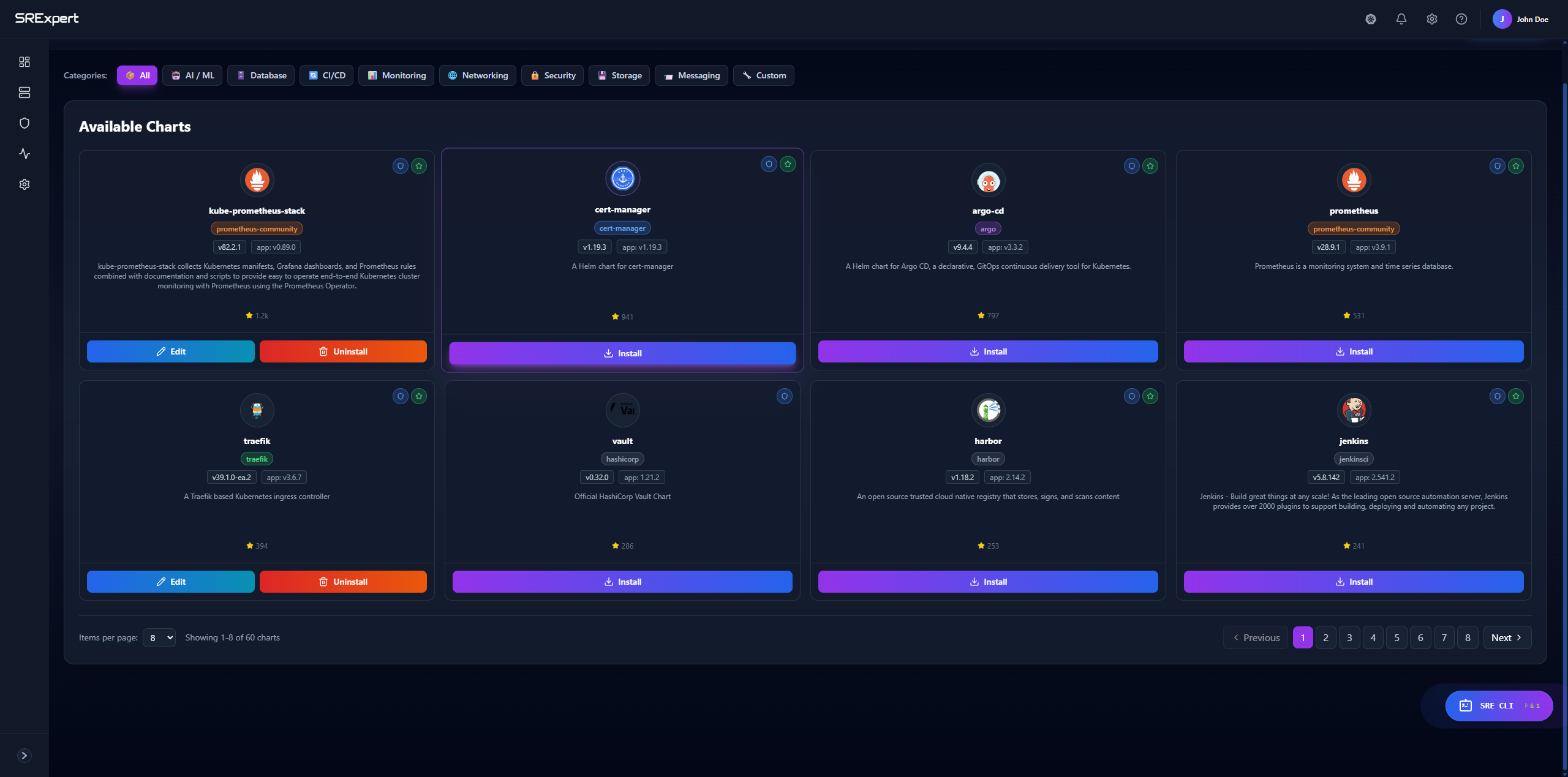
Releases
View Releases
The releases list shows:
| Column | Description |
|---|---|
| Name | Release name |
| Namespace | Deployed namespace |
| Chart | Chart name and version |
| App Version | Application version |
| Status | Release status |
| Updated | Last update time |
Release Status
| Status | Description |
|---|---|
| Deployed | Successfully deployed |
| Failed | Deployment failed |
| Pending | Operation in progress |
| Uninstalled | Release removed |
Release Details
Click on a release to see:
- Values (current configuration)
- Manifest (generated resources)
- Notes (post-install notes)
- History (all revisions)
Installing Charts
From Repository
- Go to Helm > Charts
- Search for a chart
- Click Install
- Configure:
- Release name
- Namespace
- Values (YAML)
- Click Install
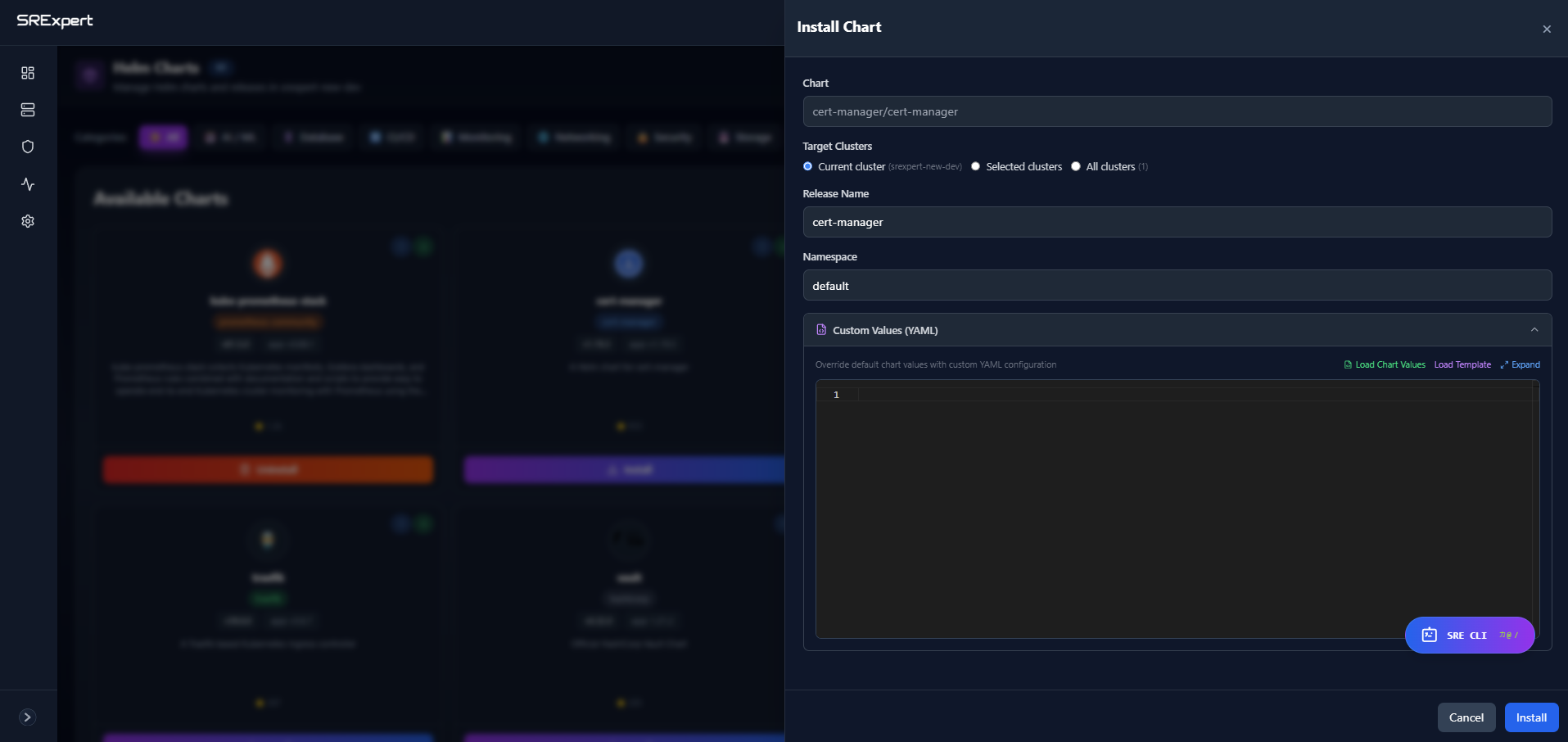
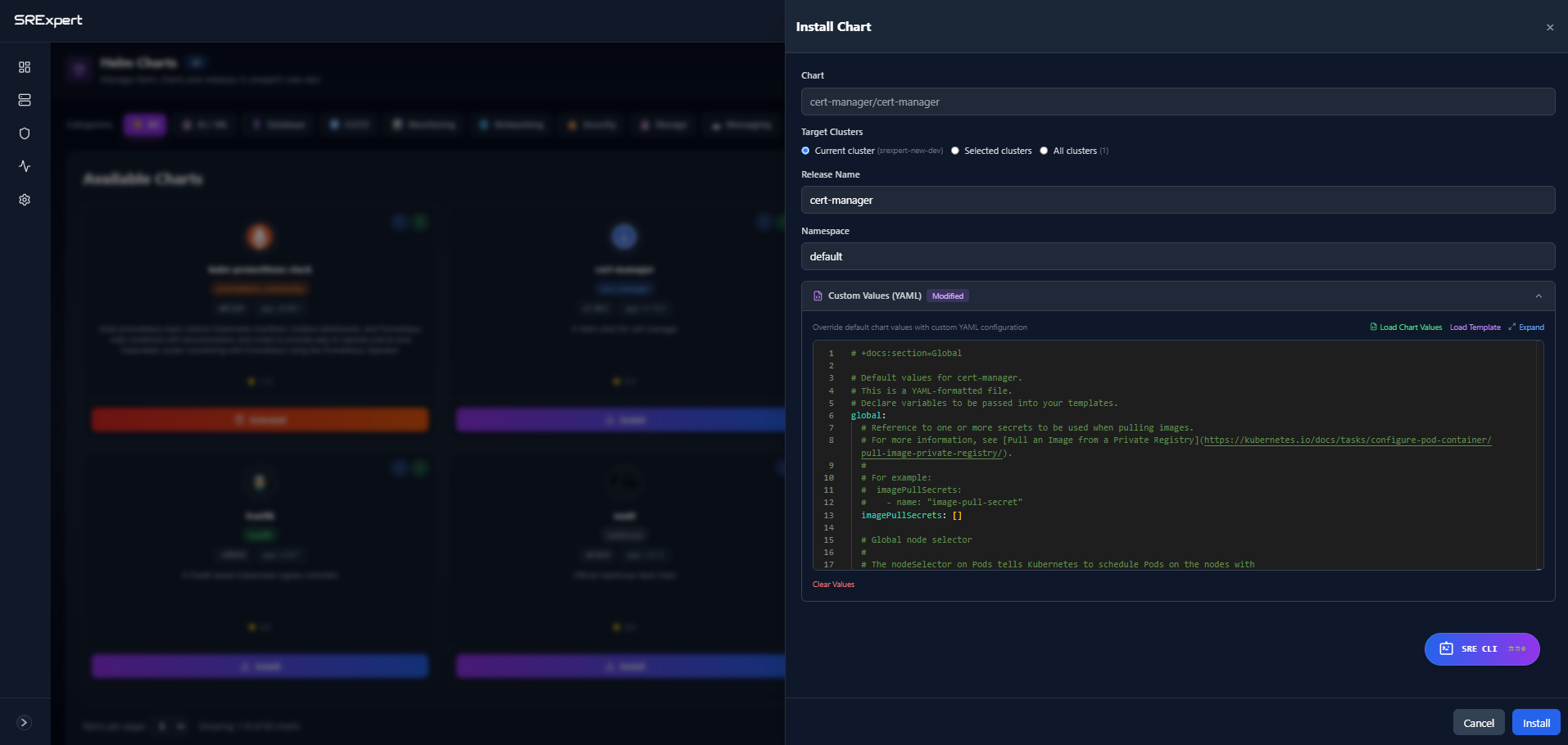
Click Load Chart Values to load the default values from the Helm chart. You can then customize any values as needed before installing.
From URL
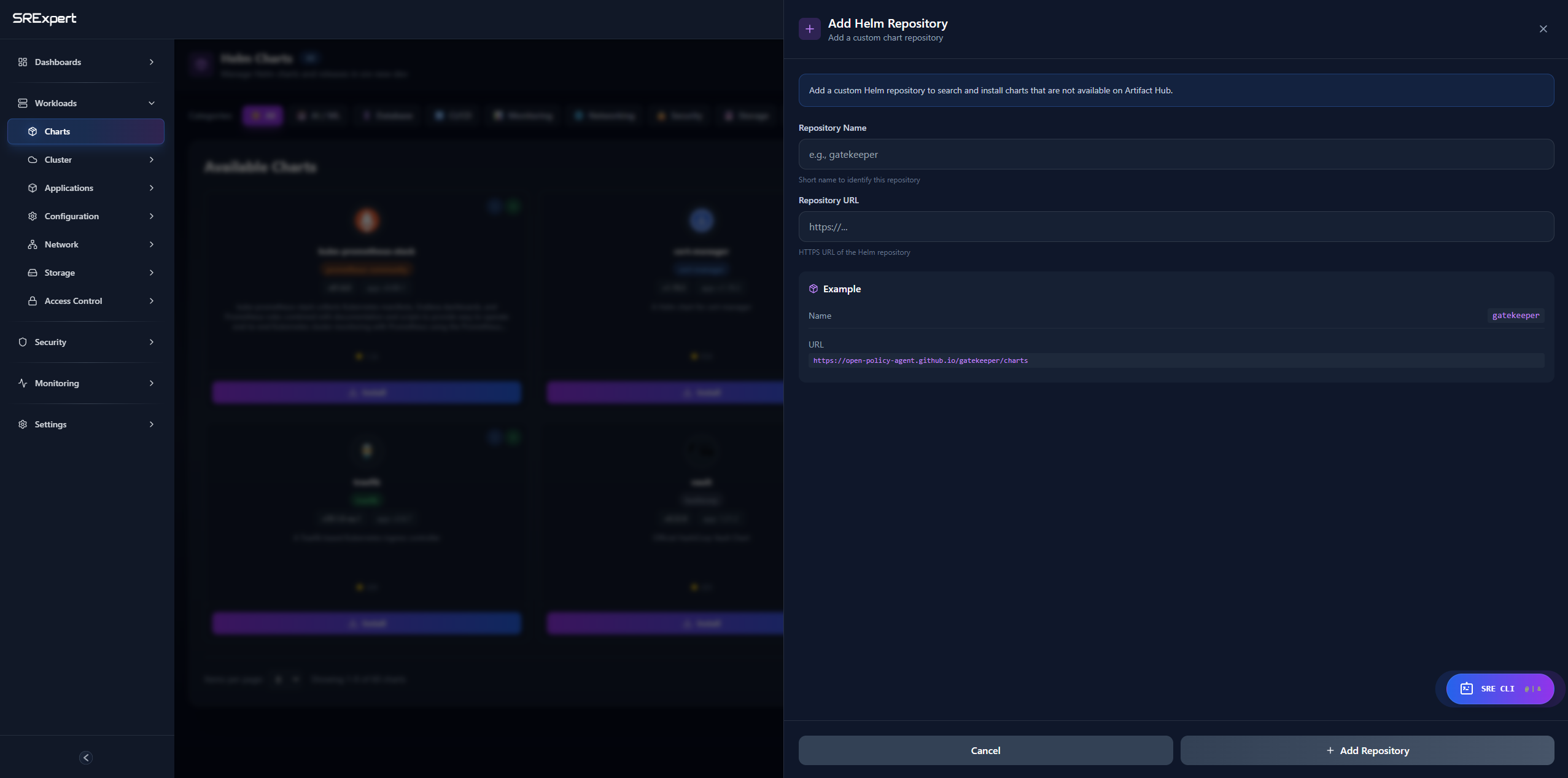
Install charts from a custom repository:
- Click Add Repository
- Enter repository name and URL
- Click Add Repository to save
Editing Releases
You can edit installed releases to update their configuration values.
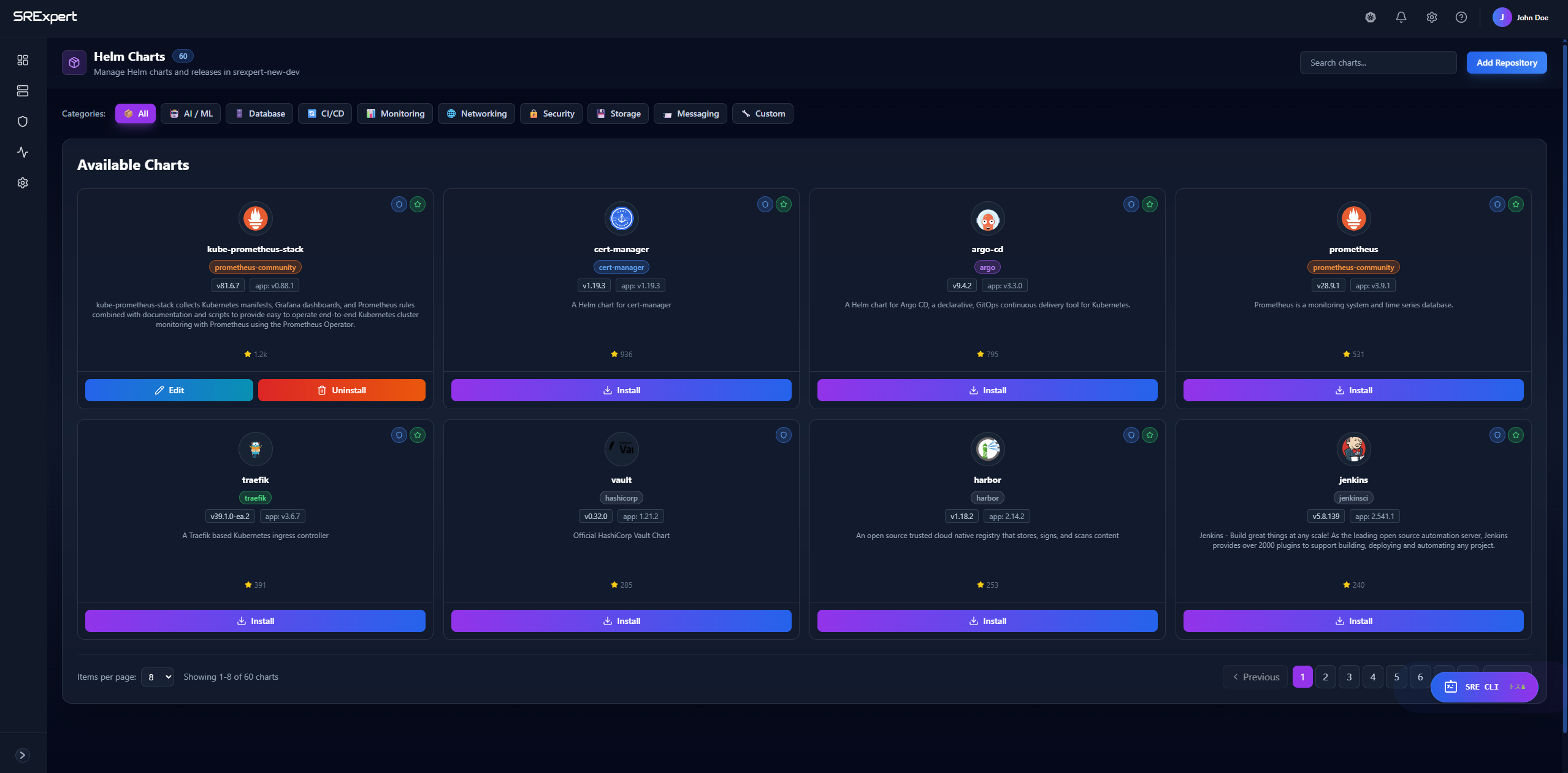
Edit Process
- Go to Helm Charts page
- Find the release you want to edit
- Click the Edit button on the release card
- The Edit Release modal will open with the current values
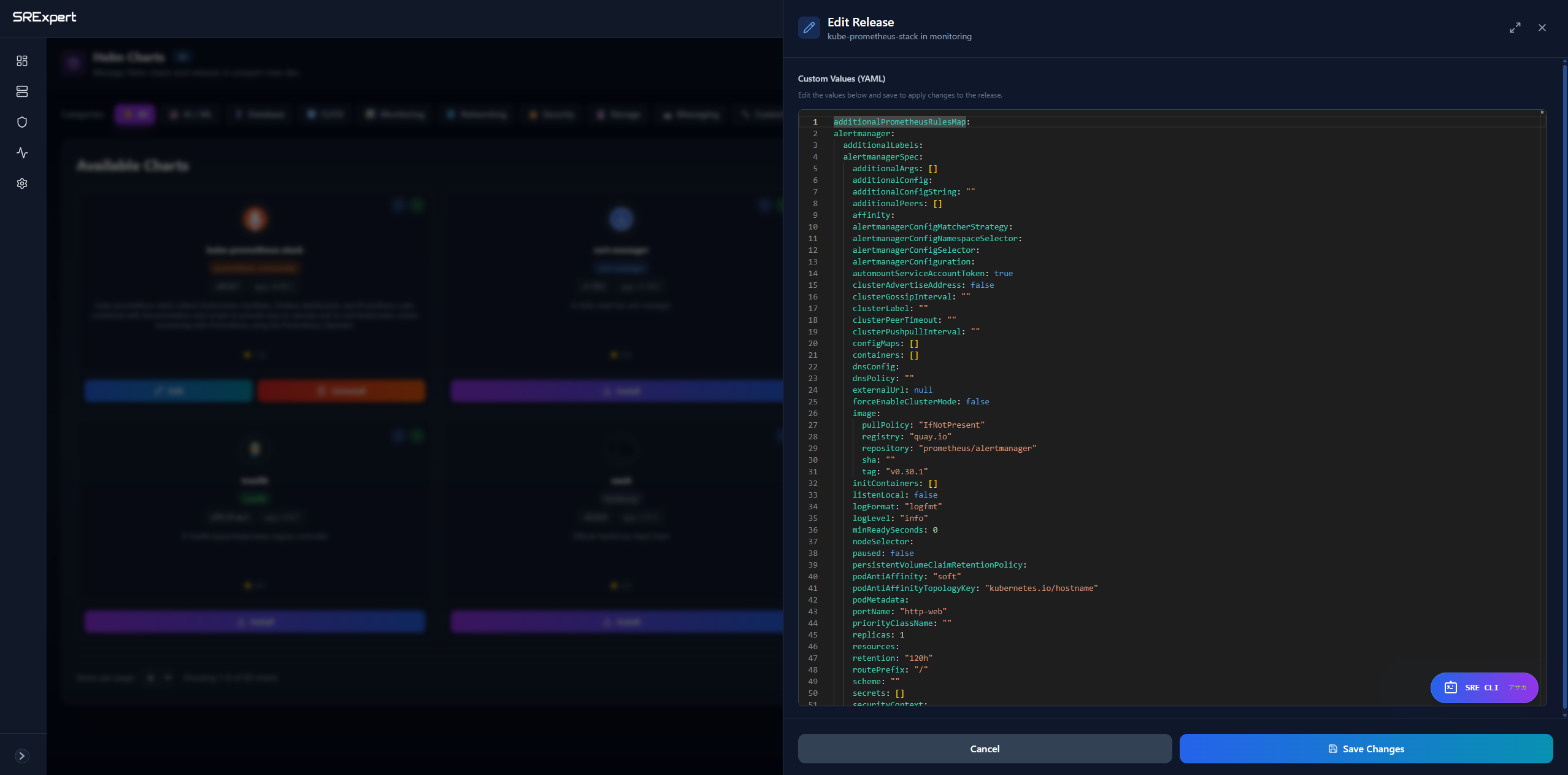
Edit Release Modal
The Edit Release modal shows:
| Section | Description |
|---|---|
| Release Name | The name of the release being edited |
| Namespace | The namespace where the release is deployed |
| Custom Values (YAML) | YAML editor with the current configuration values |
Editing Values
- Modify the YAML values as needed in the editor
- The editor provides syntax highlighting for easier editing
- Click Save Changes to apply the new configuration
- Click Cancel to discard changes
Tip: Review your changes carefully before saving. Invalid YAML will prevent the release from being updated.
Rollback
View History
See all release revisions:
| Revision | Updated | Status | Chart | Description |
|---|---|---|---|---|
| 3 | 2 hours ago | Deployed | nginx-1.2.0 | Upgrade |
| 2 | 1 day ago | Superseded | nginx-1.1.0 | Upgrade |
| 1 | 3 days ago | Superseded | nginx-1.0.0 | Install |
Rollback to Revision
- Click Rollback
- Select revision number
- Confirm rollback
Uninstalling
Remove Release
- Select the release
- Click Uninstall
- Optionally keep history
- Confirm
Warning: Uninstalling removes all resources created by the release.
Repositories
View Repositories
See configured chart repositories:
- Bitnami
- Stable (deprecated)
- Custom repos
Add Repository
- Go to Helm > Repositories
- Click Add Repository
- Enter:
- Name
- URL
- Credentials (if private)
- Click Add
SRExpert Repository
helm repo add srexpert-helm https://nexus.srexpert.io/repository/srexpert-helm/
helm repo update
Chart Browser
Search Charts
Search across all repositories:
- By name
- By keyword
- By category
Chart Details
View chart information:
- Description
- Maintainers
- Source code link
- Dependencies
- Default values
Values Management
View Current Values
See the values used for a release.
Compare Values
Compare values between:
- Current vs default
- Current vs previous revision
- Two revisions
Values Editor
Edit values with:
- YAML syntax highlighting
- Validation
- Auto-complete
Best Practices
Version Control
Store values files in Git:
├── values/
│   ├── production/
│   │   └── nginx.yaml
│   └── staging/
│       └── nginx.yaml
Testing
Test upgrades in staging first.
Backup
Export values before major changes.
Next Steps
- Workloads View - View deployed resources
- Monitoring - Monitor releases
- Troubleshooting - Debug issues